AssistYu

WINDOWS PERFORMANCE OPTIMIZER

PC Cleaning Utility Complete Guide

Your all-in-one resource for installing, activating, and mastering PC Cleaning Utility — clean junk files, fix registry errors, optimize startup, and boost Windows performance

Junk Cleaner Registry Repair Startup Optimizer Duplicate Finder Schedule Scans Defragment
GETTING STARTED

Install on Windows

Easy installation that takes just a few clicks

Download for Windows .exe installer

Compatible with Windows 7, 8, 10, 11 | Desktop & Laptop
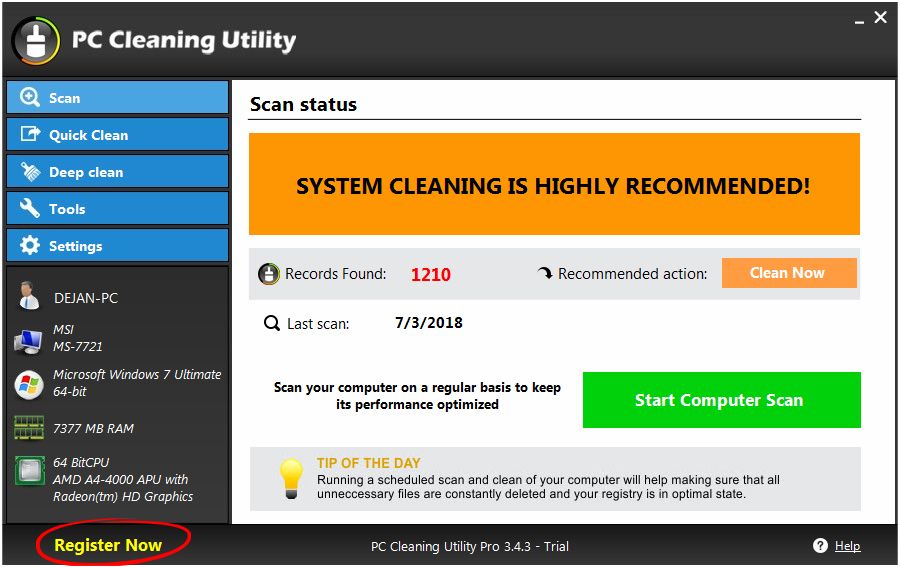
PC Cleaning Utility Main Interface

Main dashboard — one-click cleanup

1

Download the .exe installer

2

Select download location & save

3

Double-click downloaded file

4

Click "Yes" when prompted

5

Click "Install" to confirm

Software auto-starts cleaning

Free Trial: PC Cleaning Utility includes a 14-day free trial. After that, purchase a premium license (€66,11) to continue using all features.
ACTIVATION

Register & Activate

Unlock premium features with your license key
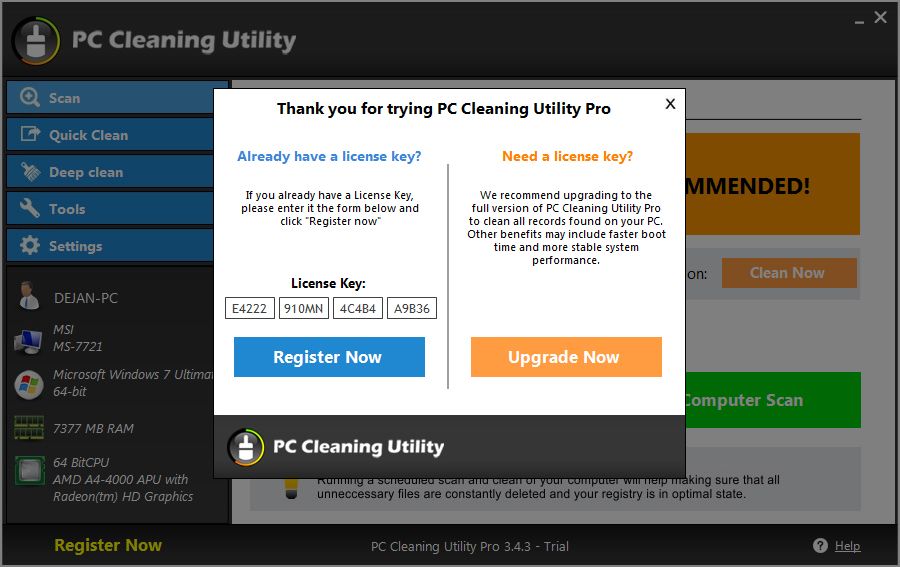
PC Cleaning Utility Registration

Registration & activation window

1 Locate "Register Now" button in the lower-right corner of the application
2 Click the button — wizard opens registration/license window with activation code box
3 Fill in your First Name, Last Name, and Email (must match purchase email)
4 Copy & paste your license key into the activation box
5 Click "Activate" button — confirmation received
Activation successful! Close window to continue
Upgrade to Premium: Purchase via assistyu.com/product/windows-performance-optimizer/ (€66,11) or within software via "Upgrade Now" button. Activation key appears on post-purchase screen and is sent to your email.
LICENSE INFO

Find Your License Information

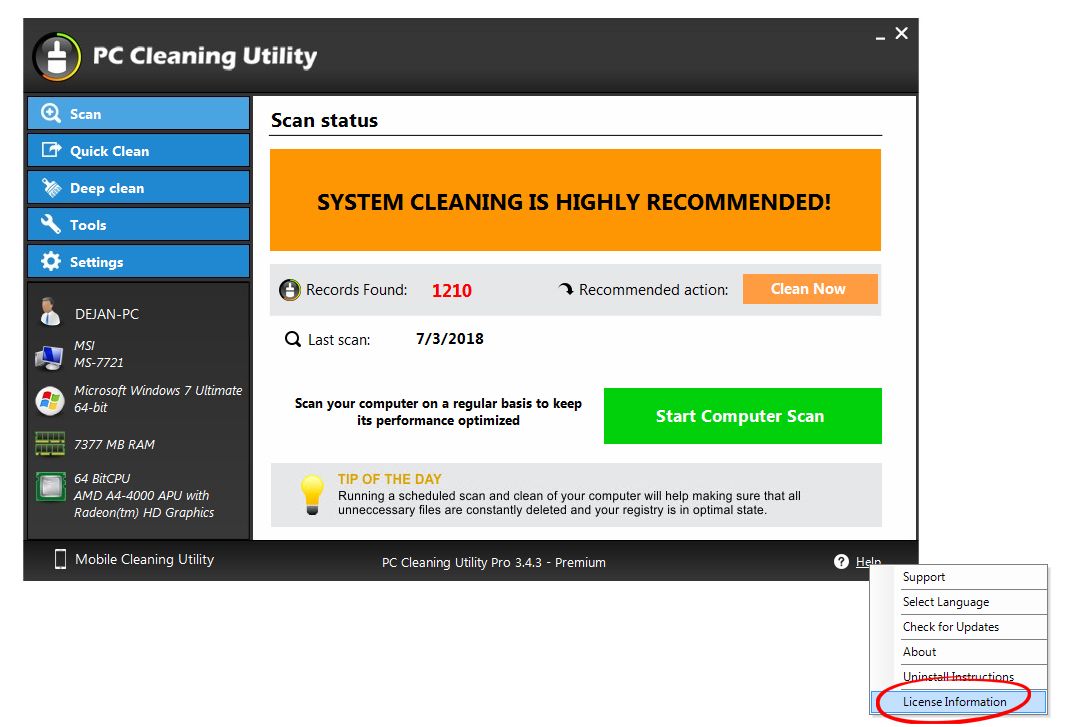
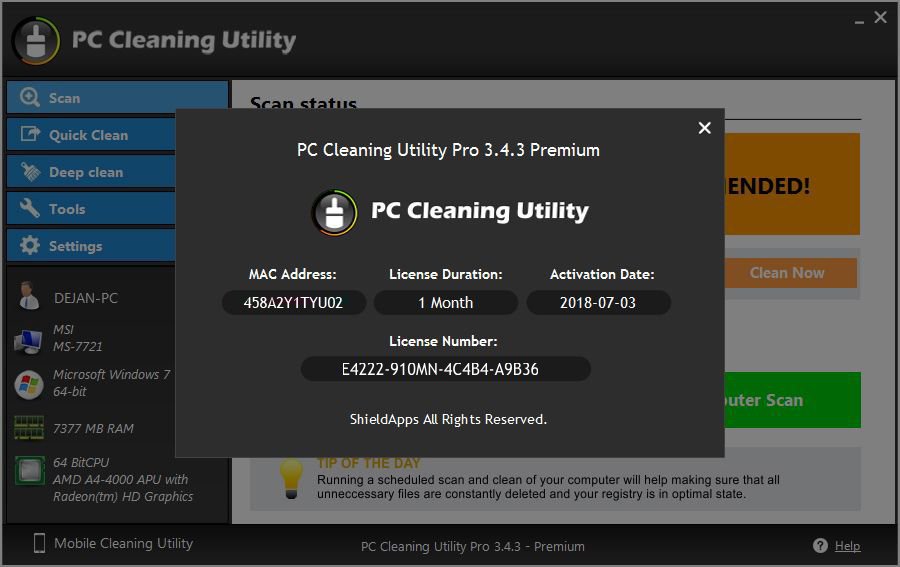
License Information Screen

Help menu → License Information

Where can I find my license information?

1 Click "Help" button in lower-left corner of the software
2 From drop-down menu, choose "License Information"
3 View your license status, type, and expiration date

Do I have the latest version?

1 Click "Help" button in lower-left corner
2 Select "Check for Updates"
3 Software automatically informs you if it's the latest version
CORE FEATURES

What PC Cleaning Utility Does

Complete optimization toolkit for your Windows PC

Junk File Cleaner

Cleans virtual devices, libraries, installation strings, junk files, temporary files, system software, history, start menu, and more — files that clog your hard drive and slow performance.

Registry Repair

Scans and fixes invalid registry entries, broken paths, and obsolete keys. Defragment registry to restore performance.

Startup Optimizer

Control which apps run when Windows starts — disable unnecessary programs to boot faster and reduce system crashes.

Duplicate Finder

Find and remove duplicate files — free up valuable disk space and reduce clutter.

Schedule Scans

Set automatic scans daily, weekly, or monthly — keep your PC optimized without lifting a finger.

System Restore

Restore points are created and logged automatically before any cleaning action — easily revert changes.
Cleans files causing substandard performance
Reduces system crashes and freezes
Safe & simple installation process
Free up hard drive space
Settings and Schedule Menu

Settings menu — customize scan areas & schedule

AUTOMATION

Schedule Automatic Scans

Keep your PC optimized automatically

1 Open PC Cleaning Utility
2 Click "Settings" → then "Schedule"
3 Select when and how often: Daily, Weekly, or Monthly
4 Choose specific time and day for the scan
5 Click "Save" — scans will run automatically
Tip: Schedule a weekly scan on Sundays to start each week with a clean, optimized PC.
ADVANCED TOOLS

Additional Utilities

Extra tools to fine-tune your system

Duplicate Finder

1 Go to Tools → Duplicate Finder
2 Choose hard drive to scan for duplicate files
3 Review results and select duplicates to remove

Startup Manager

1 Go to Tools → Startup
2 View list of apps that run when Windows starts
3 Disable unnecessary programs to speed up boot time

System Restore

📌 Restore points are created and logged automatically before any cleaning
🔍 Track them at Tools → System Restore
🔄 Click "Restore" to revert to any previous restore point

Language Support

🌍 PC Cleaning Utility supports 23 different languages
⚙️ Change language in Settings menu
CUSTOMIZATION

Customize Your Scan

Choose what to scan and what to ignore

Skip Specific Registry Items

1 During a scan, click the "+" sign left of each Category
2 A list of found Registry items is shown
3 Uncheck items you want to ignore (they won't be cleaned)

Manage Scan Areas

⚙️ Go to Settings menu
📁 Select which registries and items to scan
💾 Save preferences for future scans
REMOVAL

How to Uninstall

Complete removal guide for Windows — two methods available

Automatic Uninstall (Recommended)

1 Click Start → type "Add or Remove Programs"
2 Find PC Cleaning Utility in the list
3 Click → Uninstall
4 Follow the on-screen wizard until finished

Manual Uninstall (Control Panel)

1 Open Control Panel
2 Go to Programs → Uninstall a Program
3 Select PC Cleaning Utility
4 Click Uninstall and follow prompts
Reinstall anytime using the same installer — your license works for future reinstalls.
KNOWLEDGE BASE

Frequently Asked Questions

Can I try PC Cleaning Utility first?
Yes! PC Cleaning Utility includes a 14-day free trial period. During this time, you can use all features to clean and optimize your PC. After the trial, you can purchase a premium license (€66,11) at assistyu.com/product/windows-performance-optimizer/ to continue using the software.
Is the registry backed up before cleaning?
Yes! Restore points are created and logged automatically before any cleaning action. You can utilize them and track them at the restore points screen, when clicking on the "System Restore" button in the Tools menu.
Why do the same errors keep showing after cleaning?
PC Cleaning Utility finds and cleans system problematic files. However, some programs recreate the same invalid entries over and over again. Don't worry — only a small number of records may reappear after being cleaned. Simply run another scan periodically.
Can I schedule automatic scans?
Absolutely! Open PC Cleaning Utility → click "Settings" → then "Schedule". From this menu you can select when and how often you want PC Cleaning Utility to scan your computer (Daily, Weekly, or Monthly).
Can I find and remove duplicate files?
Yes! In the Tools section click "Duplicate Finder". Choose the hard drive to scan for duplicate files, and PC Cleaning Utility will show you the results. You can then select which duplicates to remove.
Can I choose which apps run on system startup?
Yes! In the Tools menu choose "Startup" and PC Cleaning Utility will show the list of apps that run once Windows is started. Disable unnecessary programs to speed up your boot time.
Can I change the language of PC Cleaning Utility?
Yes! PC Cleaning Utility supports 23 different languages. You can change the language in the Settings menu.
Will my application be updated automatically?
To check for updates, click the "Help" button in the lower-left corner of the screen. From the drop-down menu, select "Check for Updates" — the software will automatically inform you if a newer version is available.
How do I upgrade from free to premium?
Two ways: (1) On the website — visit assistyu.com/product/windows-performance-optimizer/ (€66,11). (2) Within the software — click "Register Now" in lower-right corner, then click "Upgrade Now". The activation key appears on the post-purchase screen and is sent to your email address.
Still need help? Our support team is available 24/7 to assist you