
AssistYu

PC PRIVACY SHIELD

Complete Privacy & Digital Fingerprint Guide

Your all-in-one resource for installing, activating, and mastering PC Privacy Shield on Windows — erase digital traces and protect your identity

Digital fingerprint cleaner Browser history eraser Tracker blocker One-click cleaning
OVERVIEW

What is PC Privacy Shield?

PC Privacy Shield is a comprehensive privacy protection application designed to eliminate your digital footprint. It scans, identifies, and securely deletes digital fingerprints left behind by your online and offline activities — including browser history, cached files, chat logs, recent documents, and tracking cookies. Whether you're a casual user or privacy enthusiast, PC Privacy Shield gives you complete control over your digital identity.

Deep system scan
Browser history cleaner
Chat log eraser (Skype up to v7.41)
Recent documents cleaner
Temporary files removal
Tracker & cookie cleaner
COMPATIBILITY

System Requirements

Windows 8, 10, 11 (32-bit & 64-bit)
Processor 1 GHz or faster
RAM 2 GB (4 GB recommended)
Storage 200 MB free space
One license protects 1 PC device/laptop. Contact sales for multi-device or business pricing.
GET LICENSE

Purchase & License Key

After purchase, you'll receive your unique license key via email. Premium version: $39.99/year — includes full cleaning capabilities.

License key sent to your registered email
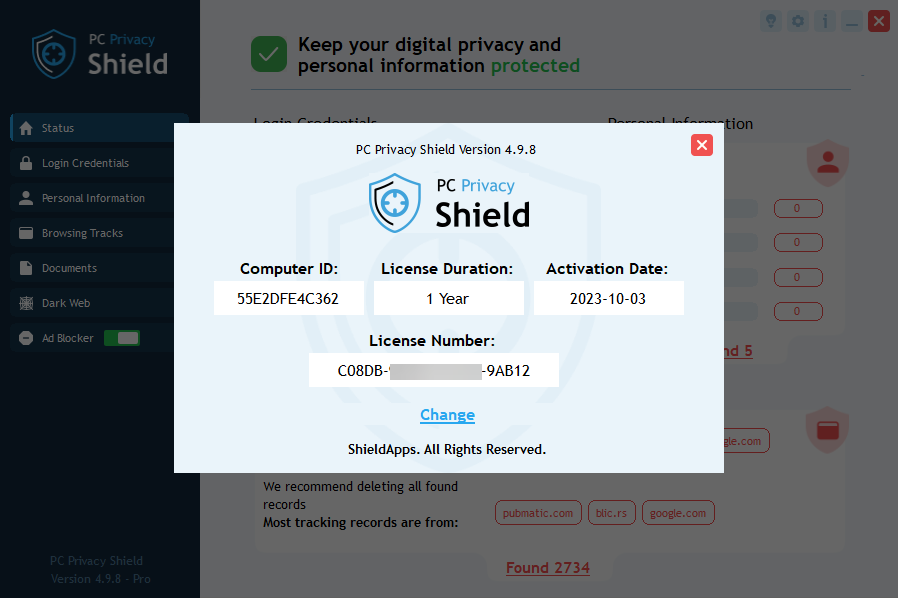
Check expiration: Click "i" icon → "License Information"
Free version: Scan & report only. Upgrade to clean fingerprints
Purchase PC Privacy Shield
INSTALLATION GUIDE

Install on Windows

Follow these step-by-step instructions for a successful installation

1

Download installer

Click the download link above and save the .exe file to your preferred location.

2

Run installer

Double-click the downloaded file. Click "Yes" when Windows asks for permission.

3

Follow wizard

Complete the installation wizard. The program will open automatically when finished.

4

First scan runs

An automated first scan will start immediately, reporting any privacy issues found.

💡 Tip: If SmartScreen appears, click "More info" then "Run anyway" — PC Privacy Shield is safe and verified.
ACTIVATION

Register & Activate Your License

Unlock full cleaning features by following these steps
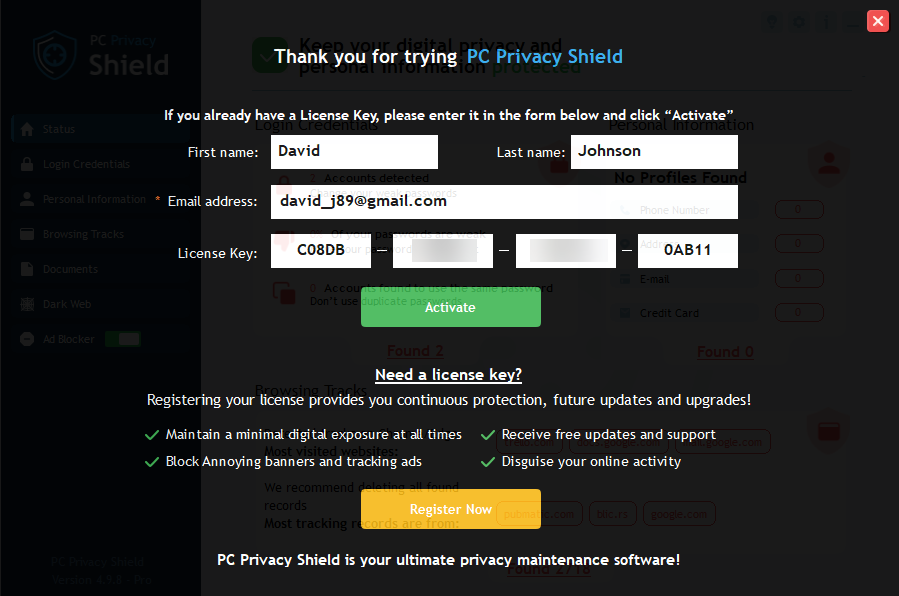
PC Privacy Shield Activation Screen

Activation window — enter your license key here

STEP 01

Locate "Register Now" Button

Open PC Privacy Shield. In the lower-right corner of the application, you'll find the yellow "Register Now" button. Click it.

The registration wizard will open a pop-up screen with an activation code box.
STEP 02

Enter Details & Activate

Fill in your first name, last name, and email address (must match purchase email). Copy your license key and paste it into the activation box.
✅ Click "Activate" — you'll receive a confirmation. Close the window to continue.
PC Privacy Shield License Information

License Information panel — check your expiration date

Activation Troubleshooting

  • Invalid key: Copy exactly without extra spaces or dashes
  • Email not recognized: Use the exact email from your purchase receipt
  • Free version limitations: Free version scans & reports but does NOT delete entries. Upgrade to Premium to clean.
  • Still issues? Contact support via the banner at the bottom
LICENSE MANAGEMENT

Find Your License Information

Check your license status and expiration date in seconds

Click the "i" icon at the top-right corner of the application
Select "License Information" from the dropdown menu
View your license status, type, and expiration date
Need to cancel your subscription? Contact PayPro Global customer support with your order details
CLEANING PROCESS

How to Clean Digital Fingerprints

Remove traces of your online and offline activities with one click

Run a Deep Scan
Review Exposed Files Report
Select Items to Delete
Confirm Deletion → Privacy Restored
What gets cleaned? Browser history • Cached files • Recent documents • Chat logs (Skype up to v7.41) • Temporary files • Tracking cookies
⚠️ Important: PC Privacy Shield asks for confirmation each time before deletion. Once confirmed, files cannot be restored — double-check your selection.
REMOVAL

How to Uninstall PC Privacy Shield

Complete removal guide for Windows — two methods available

Automatic Uninstall (Recommended)

  1. Click Start → type "Add or Remove Programs"
  2. Find PC Privacy Shield in the list
  3. Click → Uninstall
  4. Follow the on-screen wizard until finished

Manual Uninstall (Control Panel)

  1. Open Control PanelPrograms
  2. Click Uninstall a Program
  3. Select PC Privacy Shield
  4. Click Uninstall and follow prompts
Alternative: Use dedicated uninstaller tool if available
Reinstall anytime using the same installer and license key
KNOWLEDGE BASE

Frequently Asked Questions

What are Digital Fingerprints?
Digital fingerprints are pieces of information stored locally on your hard drive without your awareness — including browsing history, cached files, chat logs, recent documents, and cookies. These traces can be exploited by identity thieves, tracking companies, and data miners. PC Privacy Shield helps you erase them completely.
Why doesn't my installation delete any entries?
You're likely using the free version. The free version scans and reports privacy issues but does NOT clean or delete digital fingerprints. To clean entries, you need the Premium version ($39.99/year). Upgrade via the "Register Now" button.
Can I restore data after cleaning?
No. PC Privacy Shield asks for confirmation before each deletion. Once you confirm, the files are permanently removed and cannot be restored. Always review your selection before confirming deletion.
How many computers can I protect with one license?
A single PC Privacy Shield license protects one PC device/laptop. For multiple licenses, bulk discounts, or business versions, please contact support directly via the form below.
Which Skype versions are supported?
PC Privacy Shield supports most distributed Skype versions up to version 7.41. Chat logs from these versions can be scanned and cleaned.
How do I check my license expiration?
Open PC Privacy Shield → Click the "i" icon at the top-right corner → Select "License Information" to view your license status and expiration date. (See screenshot above)
Is there a mobile version?
Yes! For detailed support and information about Mobile Privacy Shield for Android & iOS, please visit the official mobile documentation page.
How do I upgrade from free to premium?
Two ways: (1) On the website — click "Register Now" next to download button, complete order. (2) Within the software — click "Register Now" in lower-right corner, then follow the upgrade prompts. License key will be sent to your email.
How do I cancel my subscription?
To cancel your subscription, contact PayPro Global customer support with your order details. They will assist you with the cancellation process. A 30-day money-back guarantee is available.
Still need help? Our support team is available 24/7 to assist you with installation, activation, or any questions