
AssistYu

MOBILE IDENTITY THEFT PREVENTER

Mobile Privacy Protection Guide

Your complete resource for installing, activating, and mastering Mobile Identity Theft Preventer on Android — monitor app permissions, block camera & microphone snooping

Privacy Advisor Camera Blocker Microphone Blocker Permission Monitor 14-Day Trial
GETTING STARTED

Install on Android

Easy installation that takes just a few seconds
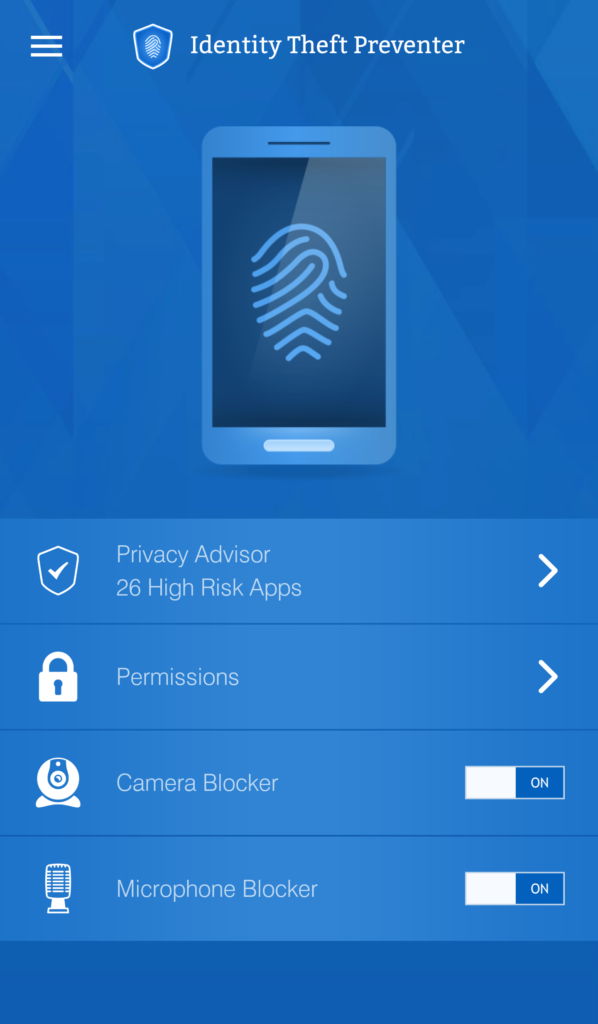
Main Dashboard - Privacy Advisor

Main dashboard — Privacy Advisor shows high-risk apps

1

Tap Install on Google Play Store

2

Wait for download & installation

3

App icon appears in your menu

Open and start protecting your privacy

Permissions required: All Files Access Permission (to scan documents) + Administrator Permissions (for camera/microphone controls). These are only used for protection features.
ACTIVATION

License Activation

14-day free trial — activate with your PC Identity Theft Preventer license key
The license key for Mobile Identity Theft Preventer is compatible with the PC version. Purchasing a PC license allows you to activate it on mobile as well.
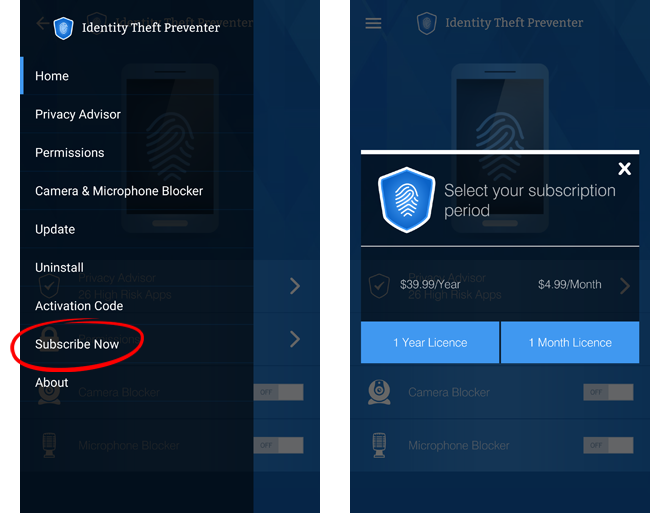
Menu - Subscribe and Activation Options

Menu options — Subscribe Now & Activation Code
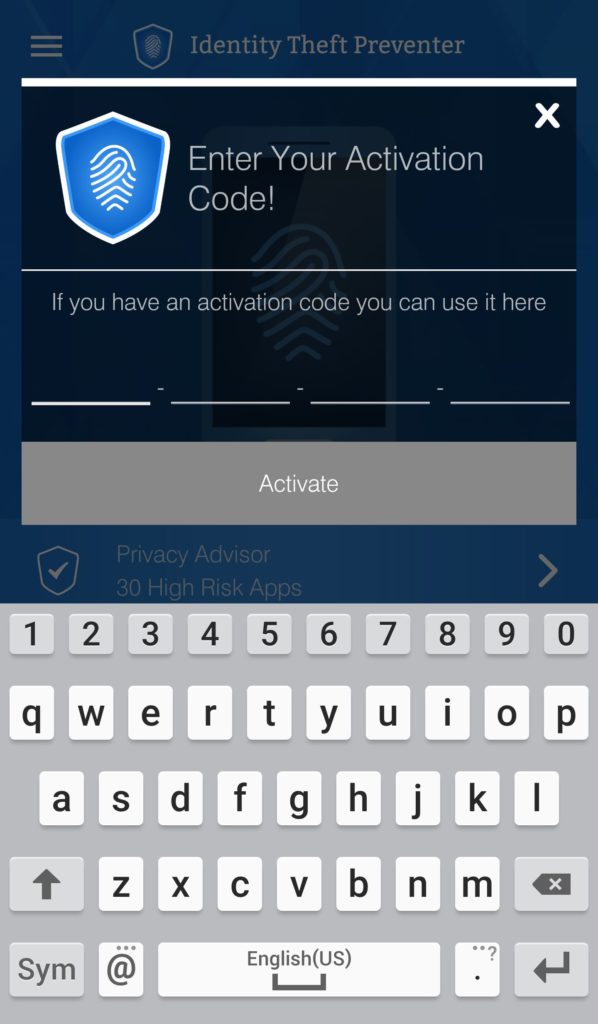
Enter Activation Code Screen

Enter your activation code

1 Open Mobile Identity Theft Preventer app
2 Tap the Menu button (☰) in the upper-left corner
3 Select "Activation Code" from the menu
4 Enter your activation code (received via email after purchase)
5 Wait a few moments — app auto-registers the license
Activation successful! Premium features unlocked
1 Open Mobile Identity Theft Preventer app
2 Tap the Menu button (☰) in the upper-left corner
3 Select "Subscribe Now" from the menu
4 Choose 1-year ($39.99) or 1-month ($4.99) license
5 Follow Google Play Store purchase flow
6 App auto-registers after purchase
Activation successful! Premium features unlocked
PC Identity Theft Preventer license owners can use the same key here — no need to purchase again
Trial period: 14 days free trial — after that, certain features no longer function. Activate with a license key to continue using all features.
CORE FEATURES

What Mobile Identity Theft Preventer Provides

Complete privacy protection for your Android device
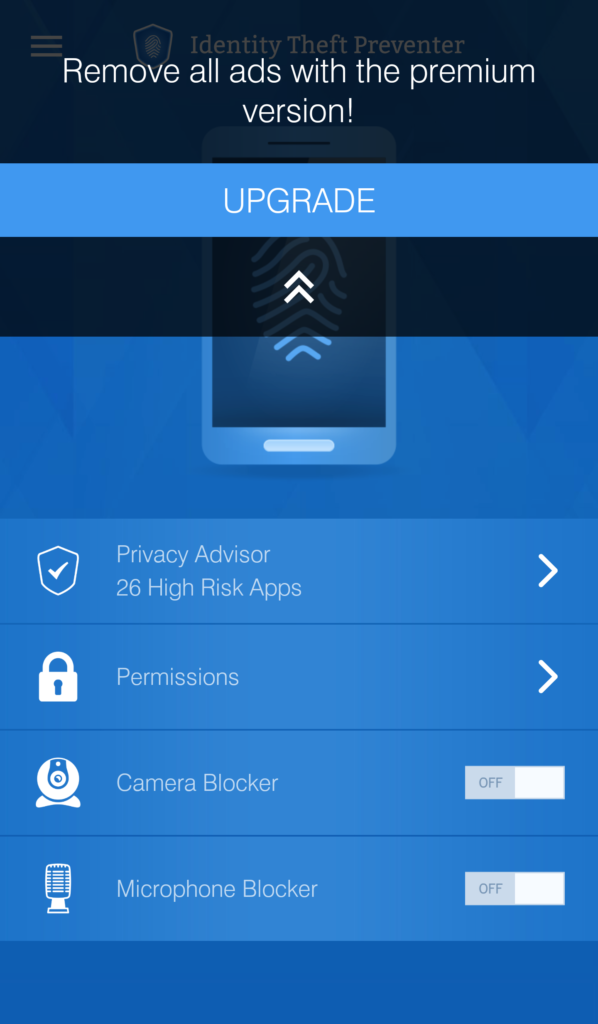
Privacy Advisor and Permission Control

Privacy Advisor — permissions categorized by risk level

Privacy Advisor

Monitors the permissions of all apps installed on your device — categorizes them by privacy-risk level (High Risk, Medium Risk, Low Risk). Each report includes detailed information and a suggested response per case.

Permission Control

Centralizes all permissions allowing you to conveniently review and assess their validity and need. Remove each threat directly from within the interface.

Camera Blocker

Blocks any unauthorized access to your device's camera, preventing spying attempts. You can white-list specific apps you trust for full camera access.

Microphone Blocker

Blocks any unauthorized access to your device's microphone, preventing eavesdropping. Manage and authorize microphone access per app.

Low Battery Usage

Developed to have low usage toll on your phone, keeping it at peak performance in all regards to speed and battery usage.

Ad-Free Premium

Upgrade to premium version to remove all ads and unlock full protection features.

WHY IT MATTERS

Why You Need Privacy Protection

Mobile Identity Theft Preventer is developed to provide insight into apps installed on your device. More often, applications use permissions they are not developed or authorized to have — this either signifies malware or that the application is infected.

Hidden trackers
Location access
Contact harvesting
Camera misuse
Audio eavesdropping
REMOVAL

How to Uninstall

Complete removal guide for Android devices

1
Open the app

Launch Mobile Identity Theft Preventer from your app drawer

2
Tap Menu button (☰)

Located in the upper-left corner of the app

3
Select "Uninstall"

Inside the menu, press Uninstall

Important — Remove Administrator Rights First
A sliding window appears — follow these two steps:
Step 1

Click "Remove" button at the bottom of the screen to remove administrator rights of the app

Step 2

You may now close the application

Step 3

Go to device Settings → Apps and remove Mobile Identity Theft Preventer like any other application

Reinstall anytime from Google Play Store — your license works for future reinstalls.
SECURITY

Why Admin Permission?

Certain features of Mobile Identity Theft Preventer need administrator permission to function. Administrator rights give the app permission to selectively block usage of the camera and microphone per app installed.

Admin rights allow the app to monitor app permissions, block camera/microphone access, and provide full privacy protection. You can revoke these rights anytime during uninstallation.
KNOWLEDGE BASE

Frequently Asked Questions

What is Mobile Identity Theft Preventer?
Mobile Identity Theft Preventer is a privacy guard application for users on the go. It protects personal information stored on smartphones and monitors app permissions to prevent privacy breaches.
Is Mobile Identity Theft Preventer free?
Mobile Identity Theft Preventer is free to try with a 14-day trial period. After 14 days, certain features no longer function. Activate with a license key or subscribe via the app to continue using all features. Premium removes all ads.
How many devices can use a single license key?
Mobile Identity Theft Preventer is intended for one device at a time. If you wish to protect more than one device, please contact support directly. The license is compatible with the PC version of Identity Theft Preventer — purchasing a PC license allows activation on mobile as well.
Is there a PC version?
Yes! Identity Theft Preventer has a PC version with additional features. The mobile and PC versions share license compatibility — one license works across both platforms.
Is it hard to use Mobile Identity Theft Preventer?
Not at all. Mobile Identity Theft Preventer is highly automated and user-friendly. The features are presented in a clean and simple design that anyone can navigate.
Why does Mobile Identity Theft Preventer need administrator permission?
Certain features of the app need admin permission to function. Administrator rights give the app permission to selectively block usage of the camera and microphone per app installed. You can revoke these rights anytime during uninstallation.
What permissions are required?
Mobile Identity Theft Preventer requires: All Files Access Permission (to scan and analyze documents on your device) and Administrator Permissions (for camera and microphone controls). These permissions are only used for protection features.
Still need help? Our support team is available 24/7 to assist you

MOL VENTURE, INC. | support@shieldapps.com | 5042 Wilshire Blvd Ste 27734 Los Angeles, CA 90036